- Start & Build

Product Overview
What you can do with BigCommerce.
Agentic Commerce
 AI-powered solutions for growth.
Design Your Store
Build your store with or without code.
Apps & Integrations
Over 1,200 apps to help you grow.
Migrate to BigCommerce
Switch from Shopify, Woocommerce, Salesforce, Magento, and more.
- Launch Services
Overview
Chart your path to success with specialised services.Implementation Project Management
Experts to ensure you launch on time and under budget.Solution Architecture
Seasoned advisors to help you best design your store.Data Migration & Optimisation
Expertise on a clean and clear path to migrating your data.Enterprise Launch Package
Personal training on how to set up and launch your BigCommerce Store.

Professional Services Blog Series
Get to know our teams and how they support your success in this Q&A series.

The Global B2B Buyer Behavior Report
This in-depth report provides actionable strategies to help you sell more online.
Introducing Clone Order: A Faster Way to Recreate Orders (Open Beta)

Create your store and start selling today.
Create your new website.
See if the BigCommerce platform is a good fit for your business.
No credit card required.

Written by
Charles Ho06/10/2026
Introducing Clone Order: A Faster Way to Recreate Orders (Open Beta)
Get The Print Version
Tired of scrolling? Download a PDF version for easier offline reading and sharing with coworkers.
A link to download the PDF will arrive in your inbox shortly.
Key highlights:
The new clone order feature on BigCommerce, available in open beta, makes it possible to easily recreate a customer’s previous order.
Without clone order, you’re left manually recreating orders, which costs valuable time and leaves you open to manual data entry errors.
Clone order is turned on by default, and available right within the View orders page.
Clone order can copy everything but shipping details, payment details, discount coupons, manual discounts, order comments and staff notes.
Simplify order recreation with clone order
Creating a manual order from scratch takes time: reentering customer details, products, and quantities one by one. If a merchant needed to recreate a past order, whether for a repeat customer or a phone/email order, that previously meant starting the whole process over, and with room for manual mistakes.
Clone order fixes that.
Clone order is one of the most requested manual order features from merchants, and it's now in open beta to all merchants who manage orders through the BigCommerce control panel. Let’s take a look.
Why clone order matters
Everyone wants repeat business. But, without an easy way to recreate previous orders for customers, you’re left with manual data entry. This consumes valuable time, is more prone to error than automatic processes, and keeps the customer waiting.
As your business scales, the above issues only become more apparent. Recreating one order from scratch here and there is nothing. But across hundreds or thousands of orders? That’s a substantial amount of lost time and tons of avoidable manual work.
What it does
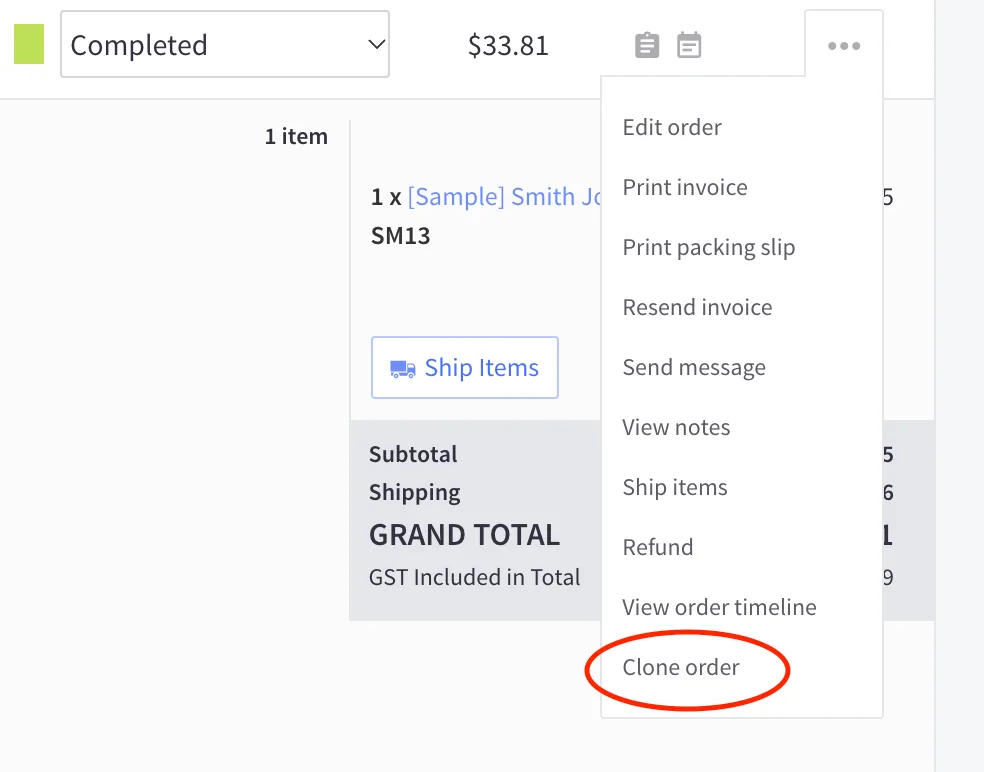
A new Clone order action appears on the View orders page in your control panel for any existing order. Selecting it creates a new order pre-filled with the following from the original customer’s order:
Storefront channel
Currency
Customer name, email address, and storefront account
Line items, selected options, and quantity
Automatic promotions
Custom products
No more manually reentering any of the above, just a quick click. And if you have multiple stores, the clone order functionality maps the order to the right storefront channel, keeping your inventory and metrics in order.
Once you’ve cloned an order, you can make further adjustments, too. This includes:
Swapping products
Updating quantities
Add items
Adding shipping details
Completing the order
And, all with a quick click, rather than rebuilding it field by field. A process that took precious time and left plenty of opportunities for data entry mistakes, done in moments.
Note: Clone order doesn't copy shipping details, payment details, discount coupons, manual discounts, order comments or staff notes, so you'll need to re-enter them.
Activating clone order functionality
Clone order is all about saving time, so naturally, it’s turned on by default.
To ensure full functionality, you will have to make sure the following permissions are enabled in your user account:
Manage Orders
Add Orders
Edit Orders
Manage Customers
Read Channels
Manage Products
Manage Categories
Add a Customer
The final word
Look for the Clone order action next time you need to recreate an order. It’ll save you time, reduce errors, and help you take care of your customers in the kind of timely fashion they deserve.
As with any beta feature, we're actively gathering feedback. If you run into issues or have suggestions, reach out to us and provide your feedback here or through your usual BigCommerce support channel.

Find your favourite features.
Explore all of the capabilities of the BigCommerce platform.